v0.8.0 ·
See the face before you edit it
Thanks to Wei Chen (@cw-jlu) and Shuting Xu (@waibiancheng520) for making failed MCP commands easier to diagnose.
Give your agent an existing STEP file. It can see the part from four angles, read its dimensions, and look up the exact face or edge it plans to change. You can see that selection before the agent edits the model.
Here is what Inspect actually returned for a pump manifold exported from Fusion 360. The part is 114.3 mm wide, with 118 faces and 334 edges. The labels let the agent refer to a particular piece of geometry, even on a part this detailed.
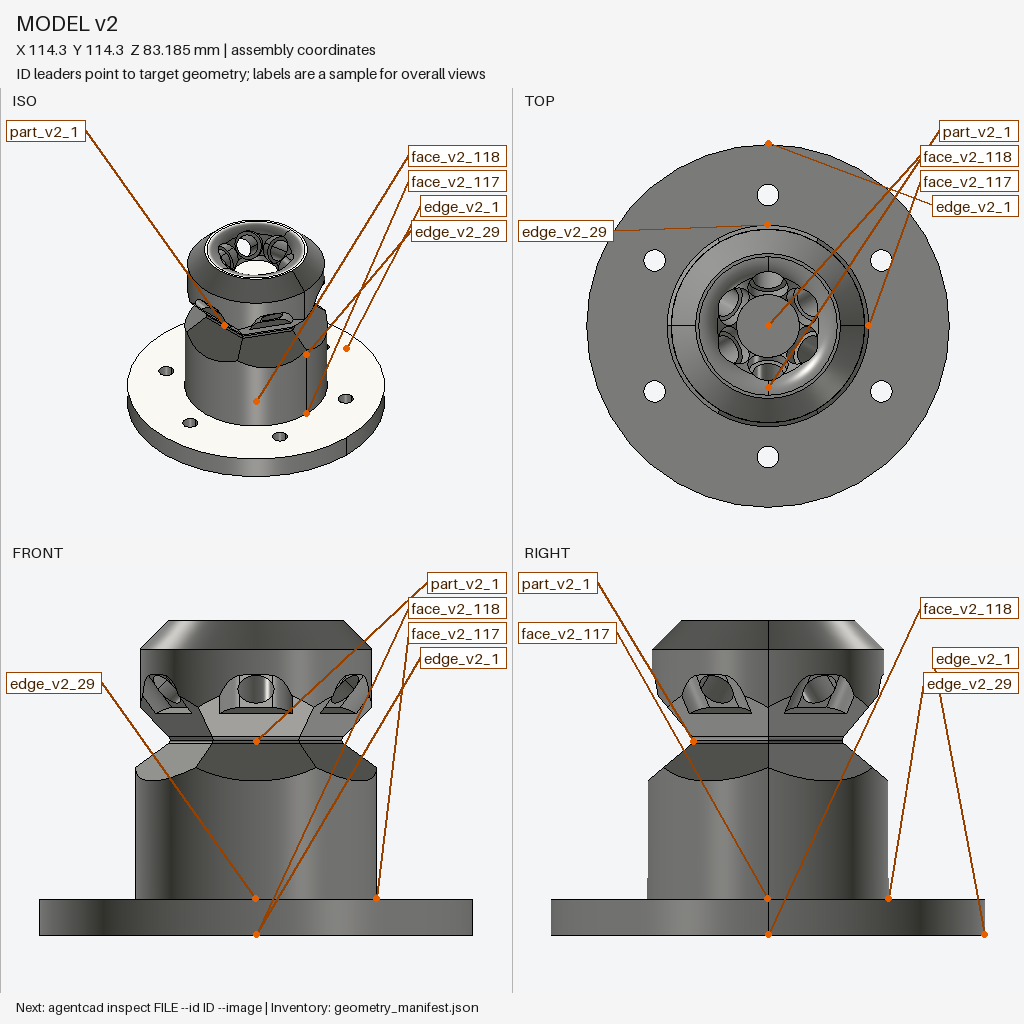
Check one face before changing it
Ask about a face by its label. In this example, the agent requested one curved face around the base. That surface appears in orange, including where the rest of the part would hide it. The same face is selected in all four views.
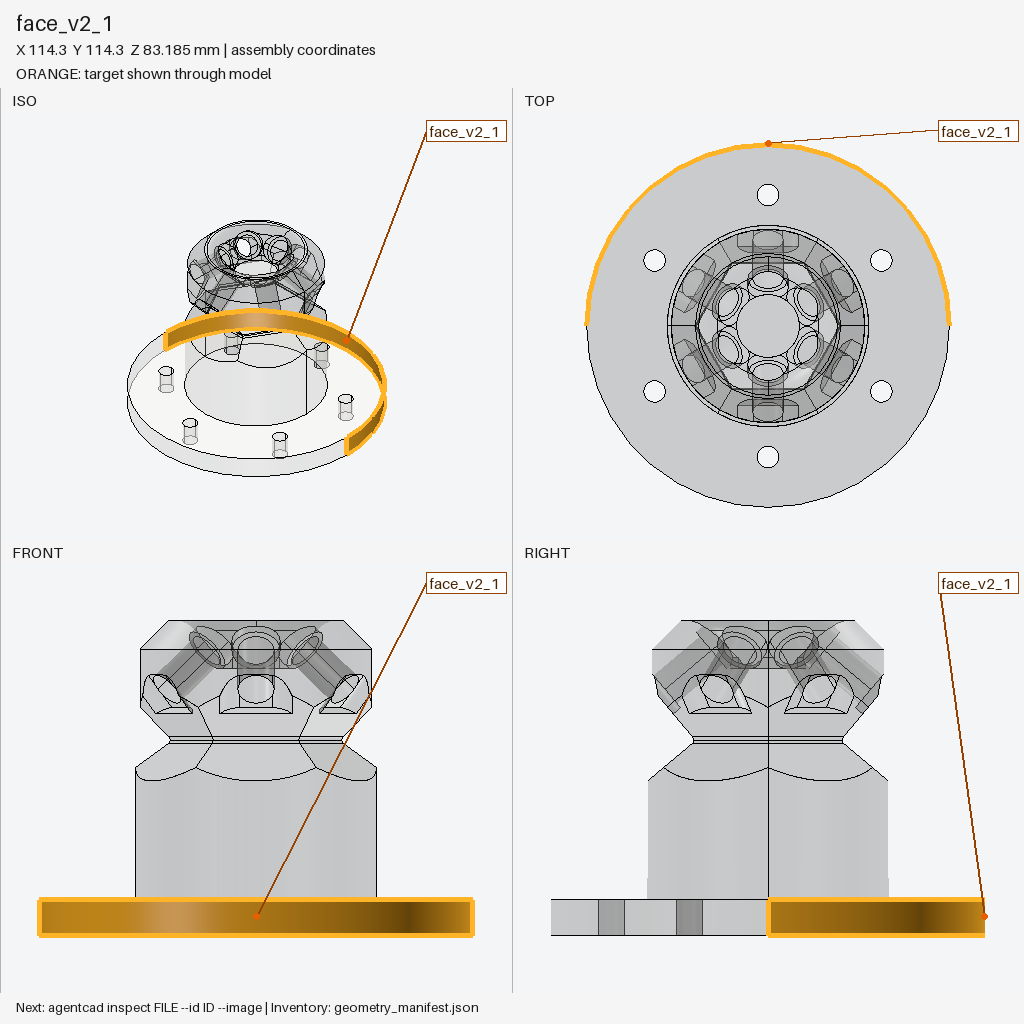
face_v2_1. Inspect also returns its area, location, and a selector the agent can use in an edit script. Open full-size image.Your agent can request another face, isolate it from the rest of the part, or fetch the full list of faces and edges. It keeps working with the same saved model, so looking more closely does not create another imported version.
What gets easier in 0.8.0
Inspect already had labeled views and geometry IDs in 0.7.2. This release makes that workflow easier to use with large files and when CAD runs on another machine.
- Keep a large part from filling the conversation. The first reply contains a compact report and selected images. The agent can fetch the full saved report when it needs more detail.
- Get the picture, even when CAD runs elsewhere. The agent can download saved PNGs, the complete face-and-edge list, and the STEP file through its existing tool connection. It can save those files locally without asking you to move them between machines.
- Recover the report without repeating the import. If the short reply leaves out something important, the returned retrieval action reads the saved result. The agent does not need to import the same part again to get that information.
- Stop old inspection pictures filling your disk. Old reports and images expire under configurable limits. Cleanup keeps your CAD files, geometry IDs, and the checkpoints needed to finish interrupted inspection work.
These examples inspect faces and edges. Automatic feature recognition and similarity search are still in development. See the Inspect reference for commands and options.
Fixes you can see in your models and exports
- Closed parts stay closed in GLB exports. The bracket-and-spacer example no longer develops gaps between faces when exported to GLB.
- Overlapping pieces no longer inflate the volume. If two solids occupy the same space, that material is counted once.
- Rotated parts report the right face directions. New inspection records describe each face as it is placed in the assembly.
- Failed MCP commands appear in feedback logs. A report can now include the command the agent tried when a tool call failed.
- The local CAD service keeps its control files private. It uses a private folder and refuses unsafe file paths.
Limits and compatibility for existing clients
Import and report replies default to a limit of 2,000 estimated text tokens when no context size is supplied. Use --full-response for the previous complete response shape. Saved reports and images share a default 512 MiB, 30-day cache per build root; saved full-response snapshots have separate limits.
Inspect needs no experimental flag. Older Inspect flags remain accepted for compatibility. Repair, restore, staging, promotion, deferred requirements, and authored-script retry/status commands require --experimental-changes on each CLI call, or experimental_changes: true on each MCP call. Ordinary builds, imports, file checks, and import retry keys work without that flag.
Also included
You can write a longer feedback report in a file and submit it with session context. On macOS and Linux, hosts that enable account connections also let you approve a CLI installation in your browser. Local CAD work still needs no account.
Upgrade
Stop running services with your existing installation, then upgrade:
agentcad daemon stop
agentcad viewer stop
python -m pip install --upgrade "agentcad==0.8.0"
For MCP support, install agentcad[mcp]==0.8.0. Restart MCP clients and refresh project guides with agentcad instructions install and agentcad skill install.